Support & Help
Learn how to use Trakka and find answers to common questions.
How to Use Trakka
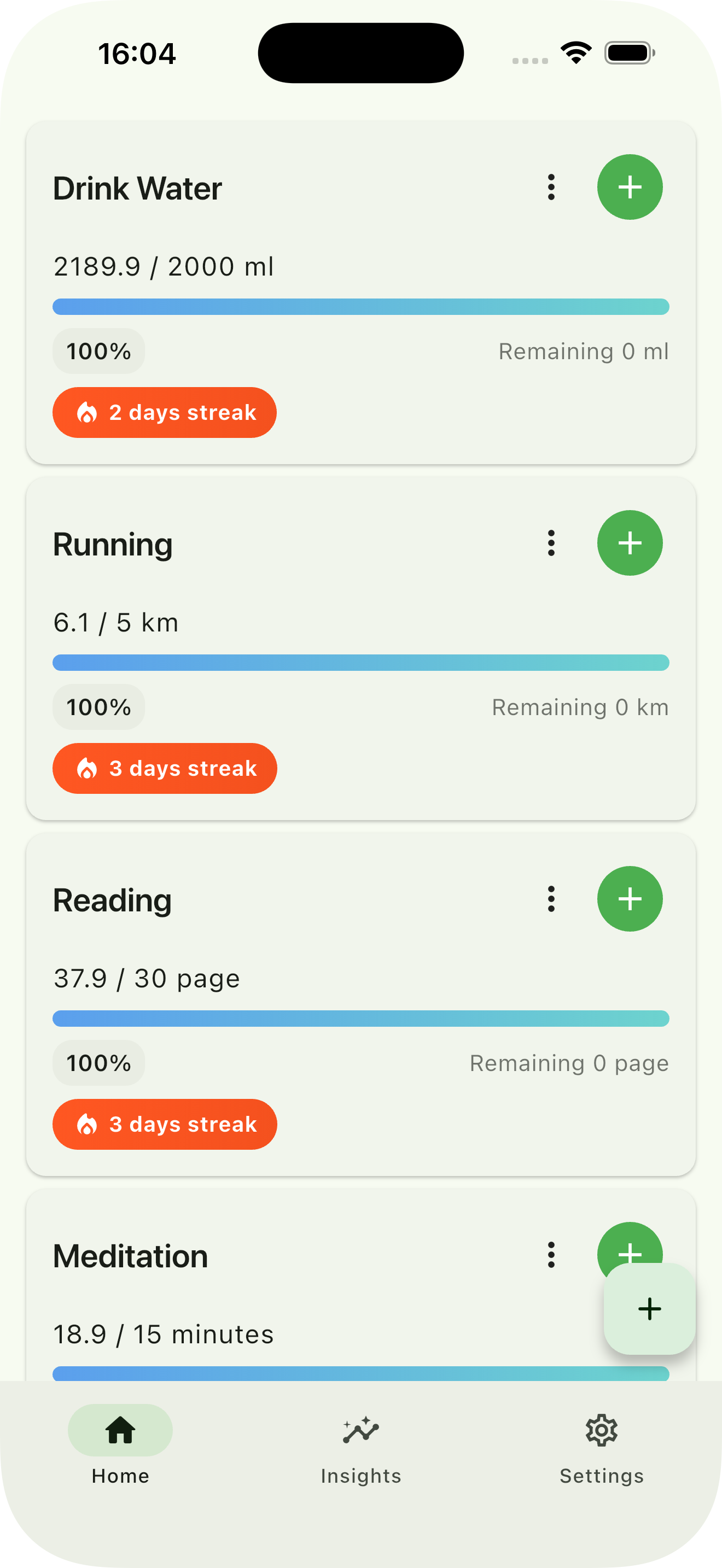
1. Check Today's Progress
"Today's progress" at the top of the home screen shows how many of your habits have reached today's goal. Each habit card displays:
- Today's total vs your daily goal (e.g. 1,250 / 2,000 ml) with a progress bar
- How much is left to reach the goal ("✓ Done" once you reach it)
- Your streak of consecutive days meeting the goal (when you have one)
2. Create a New Habit
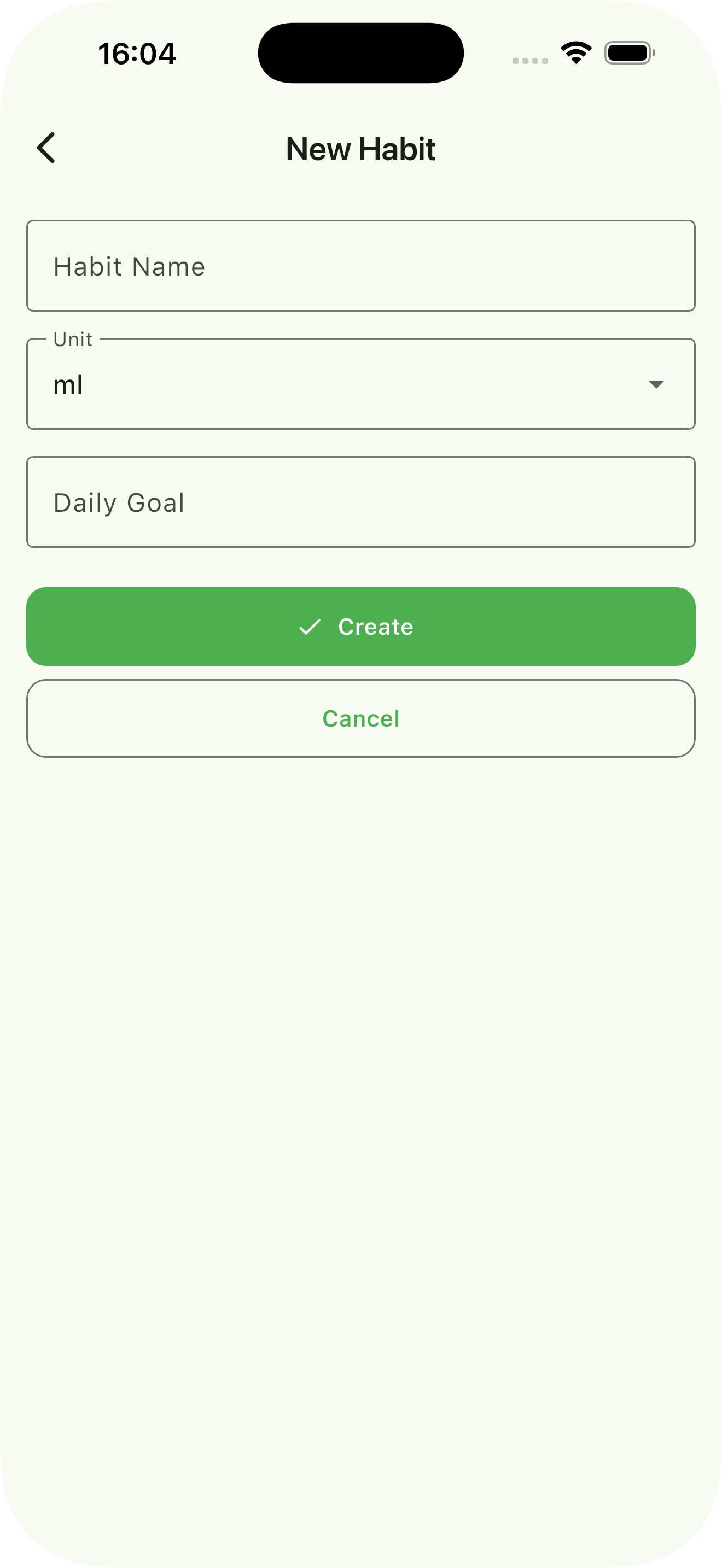
Tap "+ Add habit" at the top right of the home screen to create a new habit (the free plan allows up to 5 habits):
- Habit Name: Give your habit a descriptive name
- Unit: Tap the field to open "Select unit" and pick from 23 units grouped by volume, weight, distance, time, and count (ml, pages, minutes, etc.). For anything else, tap "Enter a custom unit"
- Daily Goal: Enter your target amount, then tap "Create"
3. Record Your Progress
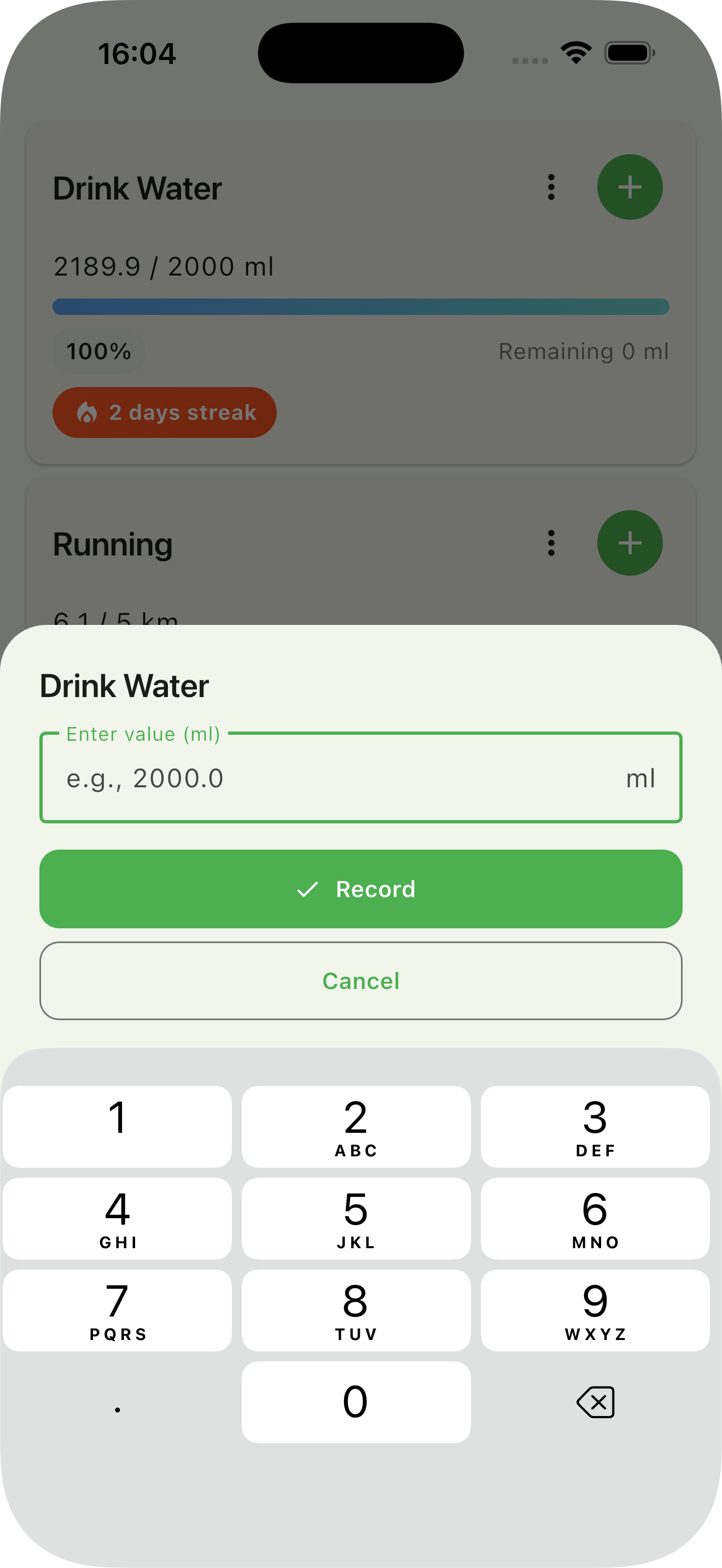
Tap "+ Record" on the right side of any habit card to add an entry:
- Enter a value, or tap a chip to fill it in: "Last …" (your most recent entry) or "… left" (the amount remaining to today's goal)
- Check the "Total after" line, then tap "Record" to save
- Multiple entries per day are automatically summed
- To record for a past day, tap the habit card to open its Entry History, then tap "+ Add Entry" and choose the date and time
4. View Statistics & Insights
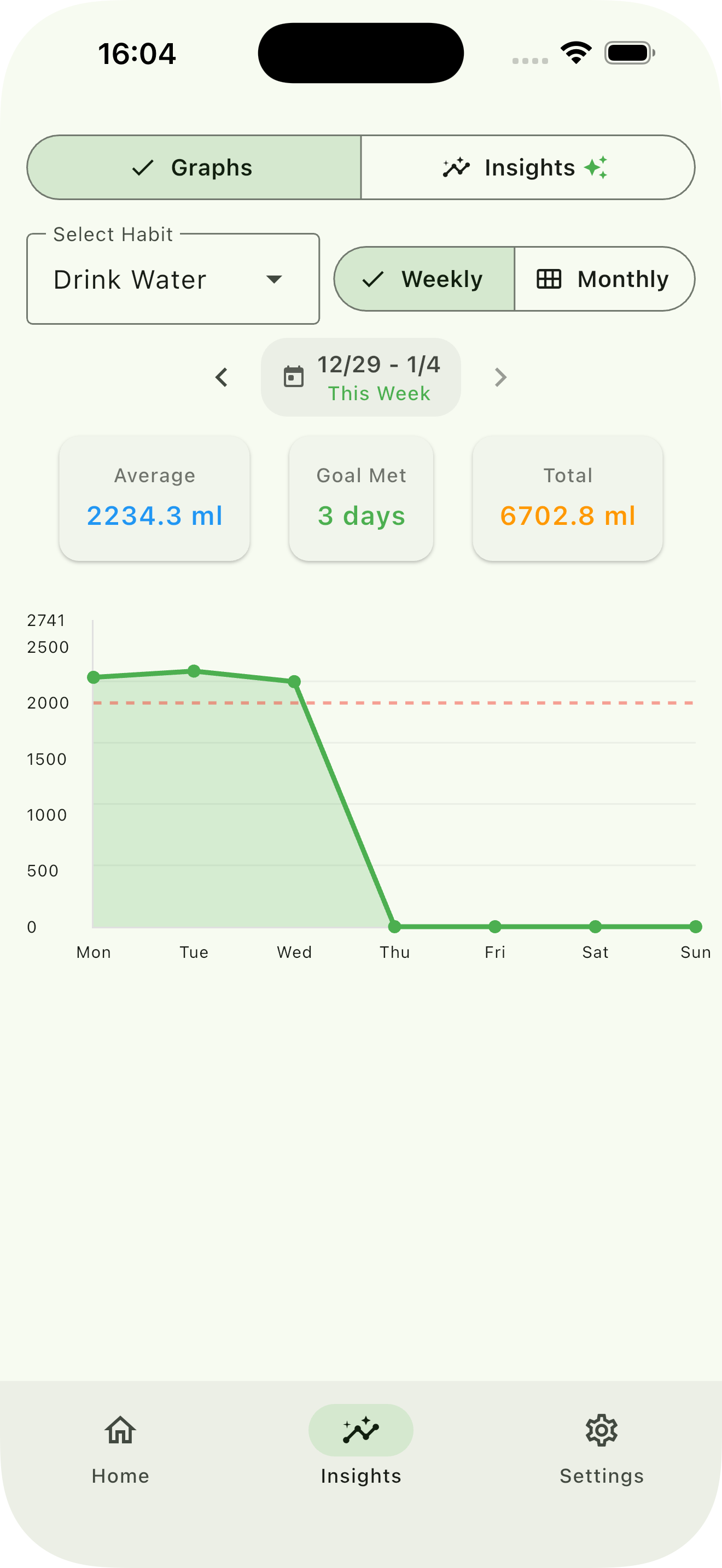
Tap "Insights" in the bottom tab bar, then switch between "By habit" and "All" at the top:
- By habit: Pick a habit to see weekly/monthly bar charts with a goal line, plus the average, days the goal was met, and total. Tap a bar to see that day's value
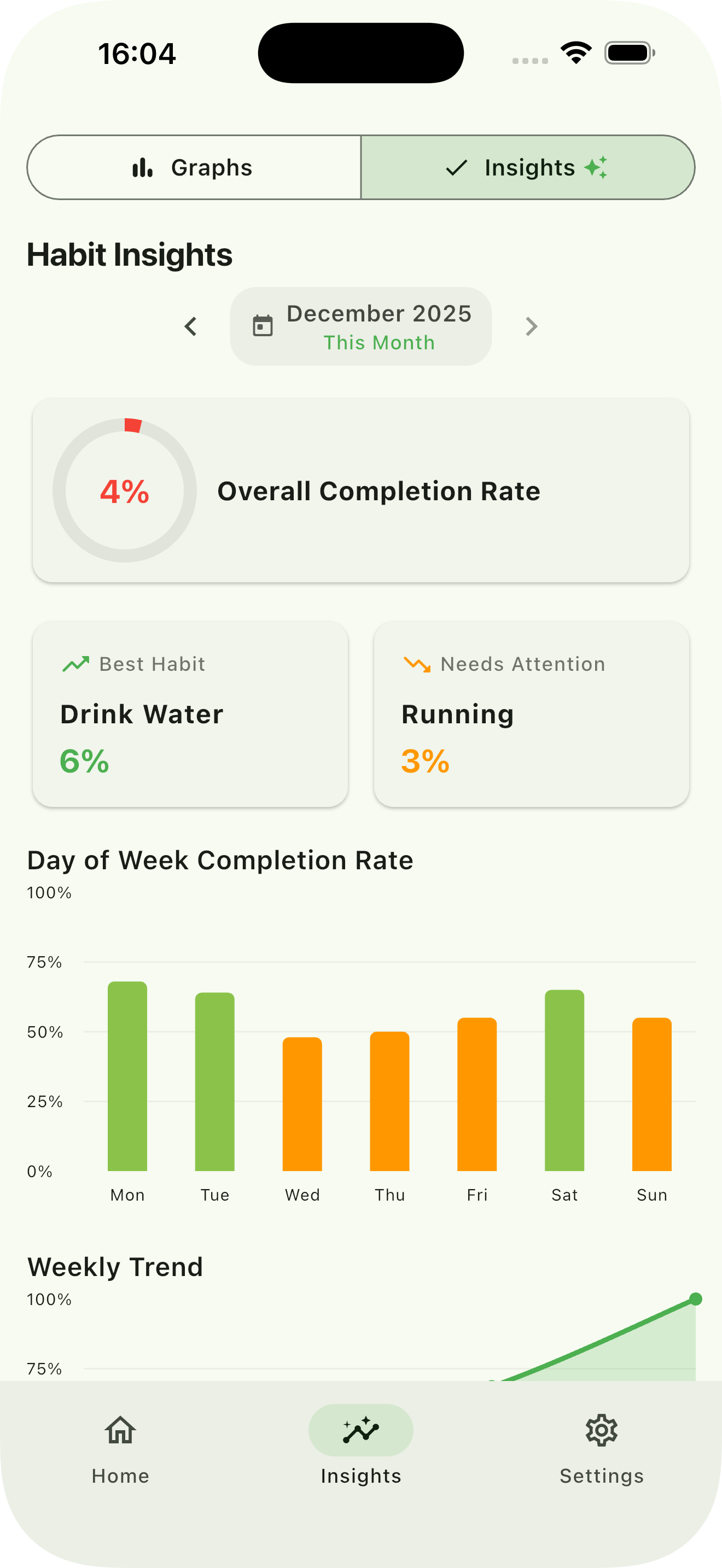
- All (Premium): Monthly overall completion rate, habit ranking, day-of-week completion rate, and weekly trend
Frequently Asked Questions
Basic Operations
How do I edit or delete a habit?
Can I edit past records?
Can I record an entry for a past day?
How is the streak calculated?
How are the averages and completion rates in Insights calculated?
By habit: The average and the number of days the goal was met cover the period from its first day through today (or the whole period for past weeks and months). Days without entries count as 0. The number of days is shown, e.g. "Avg (4 days)" and "2 / 4 days".
All: Completion rates do not count days before the habit was created. The overall completion rate is the average of each habit's completion rate.
These calculations changed in version 2.0.0, so the numbers may differ from earlier versions.
Can I reorder my habits?
Can I change the app's color or display settings?
Premium Features
What features are included in Premium?
- Unlimited habits (free version: up to 5)
- Ad-free experience
- Data export (CSV)
- Habit Insights ("All" in the Insights tab: overall completion rate, habit ranking, day-of-week completion rate, weekly trend)
How much does Premium cost?
How do I cancel my subscription?
From the app: In Trakka's Settings, tap "Premium Member" under "Account", then tap "Manage Subscription" to open your store's subscription page.
iOS: Go to Settings > Your Name > Subscriptions > Trakka > Cancel Subscription
Android: Go to Google Play Store > Menu > Subscriptions > Trakka > Cancel
Data & Backup
Where is my data stored?
When not logged in: All your data is stored locally on your device.
When logged in: Your data is first stored locally, then automatically synced to cloud storage linked to your Google/Apple account. This allows you to share data across multiple devices.
How do I export my data?
What happens if I uninstall the app?
When not logged in: Uninstalling the app will permanently delete all your data. We recommend exporting your data using the CSV export feature (Premium) beforehand.
When logged in: Local data will be deleted, but your data is saved in the cloud. After reinstalling, you can restore your data by logging in with the same account.
Can I transfer data to a new device?
Using the login feature: In Settings > Login, tap "Sign in with Google" or "Sign in with Apple" (iOS only) to sync your data to the cloud. When you log in with the same account on a new device, your data will be automatically restored.
Without logging in: For iOS users, data may be transferred via iCloud backup when restoring to a new device. We also recommend exporting your data as CSV for a reliable backup.
How do I sync data across multiple devices?
Multi-device sync: Data is synced across all devices logged in with the same Google/Apple account.
When sync occurs: Data syncs automatically after changes and when the app starts. To get the latest data immediately, tap "Sync Now" in Settings > Login. The time of the last sync is shown as "Last synced".
Note: Sync is not real-time. If changes were made on another device, restart the app or manually sync to see the updates.
Troubleshooting
The app is running slowly. What should I do?
- Close and restart the app
- Restart your device
- Check for app updates in the App Store/Google Play
- Ensure you have sufficient storage space
My subscription isn't recognized. What should I do?
- In Settings, tap "Become a Premium Member", then tap "Restore Purchases" below "Subscribe to Premium"
- Ensure you're signed into the same App Store/Google Play account used for the purchase
- Check your internet connection
- If the issue persists, contact us via the form below
Ads are still showing after upgrading to Premium.
Still Need Help?
If you couldn't find the answer to your question, please contact us. Please include the app version shown at the bottom of the Settings screen (e.g. Trakka 2.0.0).
Contact Form